QR Code Print Size: Download Examples and Test
Published · Updated
A QR that looks readable on screen can fail on paper. Size, contrast, paper and reader all matter. No universal minimum size guarantees scanning on every phone. Use a proof print to check your actual design.
Choose a starting size
For a card held in the hand, start with a 3 cm (about 1.2 inch) square, including the margin, then adjust after testing. For a poster, increase the size for the real viewing distance. The “distance divided by ten” rule is an empirical starting point, not a standard or guarantee: a 1 m viewing distance can start with a 10 cm test.
A long vCard or URL creates more small modules. At the same physical size it can be harder to read than a short link. Increase the size or remove optional information rather than cropping the border.
Preserve the clear margin
The clear border is the quiet zone. DENSO WAVE specifies four modules on each side. A module is one small square of the pattern. Its physical size changes with code density, so there is no fixed border in millimetres suitable for every QR.
DENSO WAVE’s explanation and calculation.
Keep the exported margin clear of text, photos and other graphics. Prefer dark modules on a light, plain background.
Decide between SVG, PDF and PNG with your printer
SVG and PDF preserve vector geometry and are good first choices for a printer. PNG can also work when its resolution suits the final dimensions: at 300 dpi, a 1024-pixel image covers about 8.7 cm (3.4 inches). This is a resolution calculation, not a scan result.
Avoid blur, border cropping or casual enlargement. Ask the printer to confirm the format, dimensions and placement of any logo.
Download real examples
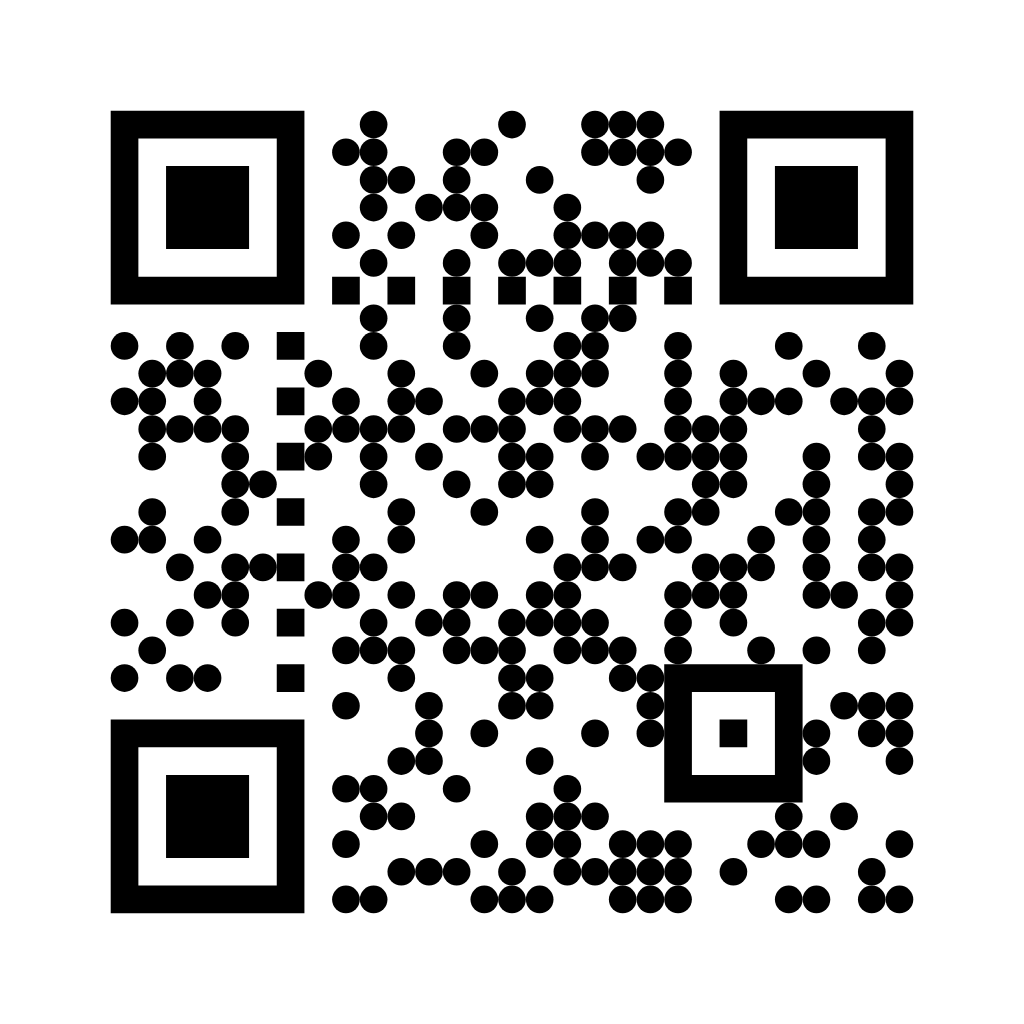
These files were exported with QR Permanent. They encode exactly https://qrpermanent.com/en/, without a generator-owned redirect. Use them to try your printing workflow, then replace them with your final QR before the production run.

What we verified
On October 7, 2026, all nine content types were checked by decoding downloaded PNG files in Chromium and WebKit, in French and English. SVG, PDF and PDF exports with a logo were also rasterized and decoded. These automated checks verify exported content; they do not measure a physical phone scanning a paper print.
Proof-printing checklist
- Print at 100% scale, at the intended size, on the intended paper.
- Try an iPhone and an Android representative of your audience, using their usual readers.
- Test at the intended distance, in good light and less favourable light.
- Verify the resulting action and content: correct URL, complete contact or correct Wi-Fi network.
- Repeat after changing size, colour, logo or encoded content.
If reading fails, enlarge the QR, restore a light background and remove the logo first. If it reads but the page does not open, check the destination: that is a link problem rather than a print-size problem.